.svg)


Product update: Clearance offers
Sell out slow stock with stepped clearance discounts, a Home page that tells you what to do next, and more precise offer targeting.
TL;DR: UpsellPlus can now turn low-inventory variants into upsells with automatic, stepped clearance discounts that stop at your cap and margin floor. This update also brings a Home page that tells you what to do next, mission levels and a monthly report, post-purchase targeting by shipping country, and include and exclude rules on the same filter.
What's new in this update
- Clearance offers: sell out slow-moving stock with discounts that only rise when variants aren't selling.
- Clearance analytics: see units left, discount step, views and sales for every variant on clearance.
- A new Home page: see in seconds whether your upsells are working and what to do next.
- Missions and milestones: level up as upsells grow as a share of store revenue.
- Shipping-country targeting: show post-purchase offers only where you ship.
- Include and exclude on one filter: no more workaround collections.
Clearance offers: sell out slow-moving inventory
Every store has stock it wants to move without running a site-wide sale. Create an offer, choose Automatic → Clearance, and UpsellPlus fills it with your low-inventory variants. It starts with a small discount and raises it step by step only when shoppers aren't buying, stopping at the maximum discount and margin floor you set. A live preview shows how many variants qualify before you publish.

How to set it up
- Go to Offers → New offer.
- Choose Automatic → Clearance.
- Set your discount steps, maximum discount and margin floor, then check the live preview.
Want a head start? The new "Sell out inventory" strategy sets you up with defaults of 14 days of stock left, discounts of 10% → 15% → 20%, and a 25% cap.
See exactly what's clearing
Each clearance offer's analytics page now shows what's on clearance right now: units left, the current discount step, views and sales at that step, and a history of what sold out. Pin a product, lock its discount, reset it or take it out, all from the same screen.

Where to find it: the analytics page of any clearance offer.
A Home page that tells you what to do next
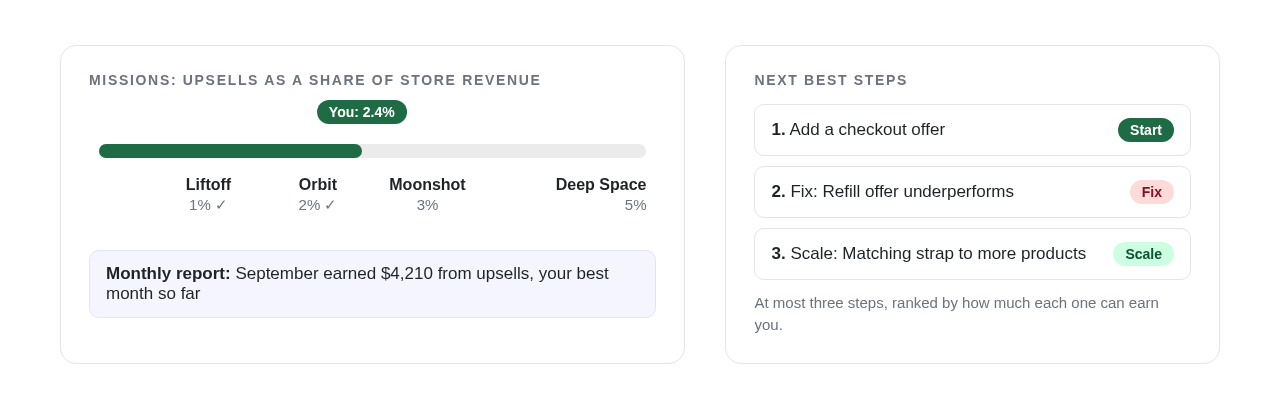
Home now answers three questions in seconds: Is it working? What has it earned? What should I do next? What you see depends on where your store is. New stores see their setup journey across product pages, cart, checkout and post-purchase. Growing stores see their upsell share of store revenue over the last 30 days, compared with the 30 days before. Established stores see a one-word verdict for each offer: Scale, Keep, Fix or Test.

Looking for the detailed dashboard? It now lives under Analytics → Overview, with its date range, currency and offer filter.
Missions and milestones
You now earn mission levels as upsells grow as a share of your store revenue: Liftoff at 1%, Orbit at 2%, Moonshot at 3% and Deep Space at 5%. Each month you also get a short report on how the last month went, and a list of at most three ranked actions shows the next best step.
Post-purchase offers by shipping country
Show a post-purchase offer only to customers shipping to the countries you pick. For example, offer a US-only membership, or hide an offer in countries where you can't ship the product.

Include and exclude on the same filter
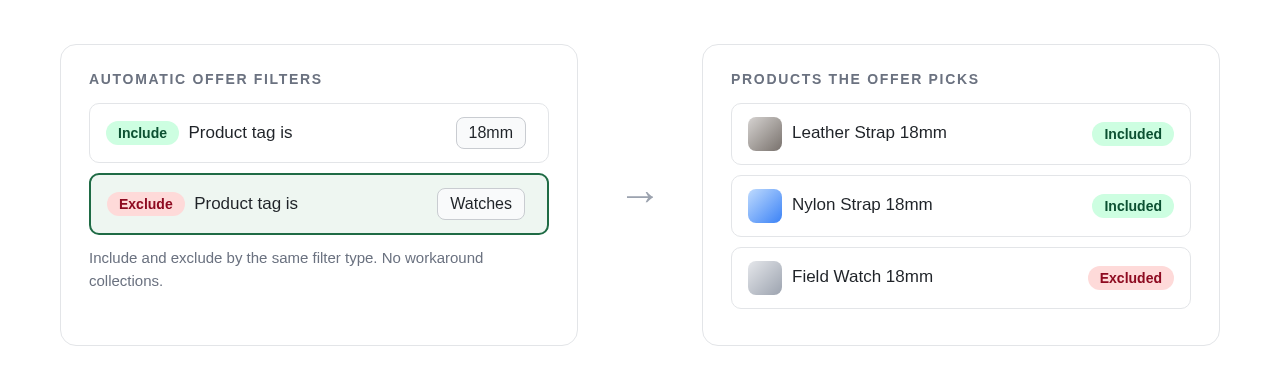
Automatic offers can now include and exclude by the same filter type. For example, include products tagged "18mm" and also exclude anything tagged "Watches". You no longer need workaround collections.
Frequently asked questions
How do UpsellPlus clearance offers decide the discount?
They start with a small discount and raise it step by step only when shoppers aren't buying a variant. The discount never goes past the maximum discount and margin floor you set.
What are the default settings of the "Sell out inventory" strategy?
Variants with 14 days of stock left, discount steps of 10%, 15% and 20%, and a 25% maximum discount.
What do the UpsellPlus mission levels mean?
They track upsells as a share of your store revenue: Liftoff at 1%, Orbit at 2%, Moonshot at 3% and Deep Space at 5%.
Can I show a post-purchase offer only in certain countries?
Yes. Add a shipping-country rule and the offer only shows to customers shipping to the countries you pick.
Get started
All of these features are live in UpsellPlus today. Start for free with a 14-day free trial, or book a demo and we'll launch any of them with you.
Looking for more ideas? Read our posts on 3 methods to create urgency and scarcity and 9 ways to increase average order value.


Jaap Vergote
Need help implementing this?

.svg)
Related Strategies

.svg)


Ready to make every order worth more?
.svg)
.svg)
.png)