.svg)


How to test upsells on a development or draft theme
Test checkout upsells on your store without needing to use a dev store, by using a copy of your live theme and previewing it.
1/ Install UpsellPlus and create an upsell offer.
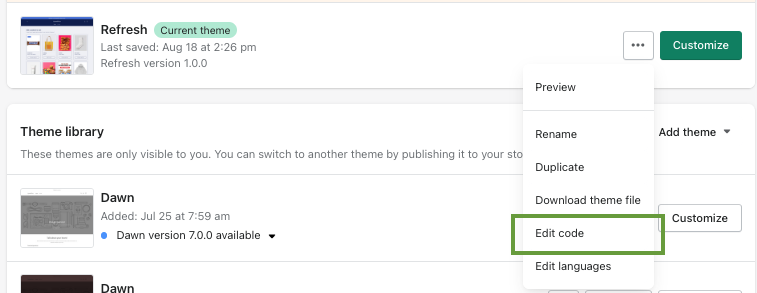
2/ Copy your live theme by going to Online Store > Themes > Actions > Duplicate.

3/ Go to your live theme > Actions > Edit code > navigate to the checkout.liquid file. There, search (CTRL + F) ‘upsellplus’.
You’ll find two code snippets you can remove for now to avoid showing the upsells on the live them once you enable them.
The code snippets start and end with a comment: 'Upsellplus 1 of 2' and 'UpsellPlus 2 of 2'. They are shown below.
4/ Select the new duplicated theme > Actions > Edit code. Go to the checkout.liquid file. Add the code snippet you just removed from the live theme:
Snippet 1: Add the snippet between breadcrumb and alternative_payment_methods
Snippet 2: scroll down until you see </body> and add the code below right above it
5/ Now enable your upsells in the UpsellPlus app. You’ll see them appear in the preview checkout of your dev theme and they won’t show on your live theme.
To add the upsells to your live store, you can
- Publish the dev theme as your live theme
- Go to the UpsellPlus app > Settings tab > Checkout.liquid offer position > Choose a position. This will add the code automatically to the live theme.


Jaap Vergote
Need help implementing this?

.svg)
Related articles

.svg)

Ready to make every order worth more?
.svg)
.svg)
.png)