


Build a Shopify cart drawer that fits your store
Arrange cart blocks, preview changes in a draft, and publish when you’re ready. You can design in UpsellPlus or with a connected AI assistant.
On a phone, the first thing a shopper sees in their cart might be a free-shipping goal or the items they just added. Now you get to decide. We rebuilt the UpsellPlus Cart Drawer so you can move its parts around, see how they look, and try a new layout without touching the cart shoppers are using.
The Northline Coffee cart shown above uses demo products and sample prices.
Arrange the cart with blocks
Open Cart Drawer in UpsellPlus and choose Customize. Drag the rewards bar above the cart items, put a relevant upsell below them, or keep the subtotal and checkout button together at the bottom. You can add and hide optional blocks and choose which show on mobile, desktop, or both.
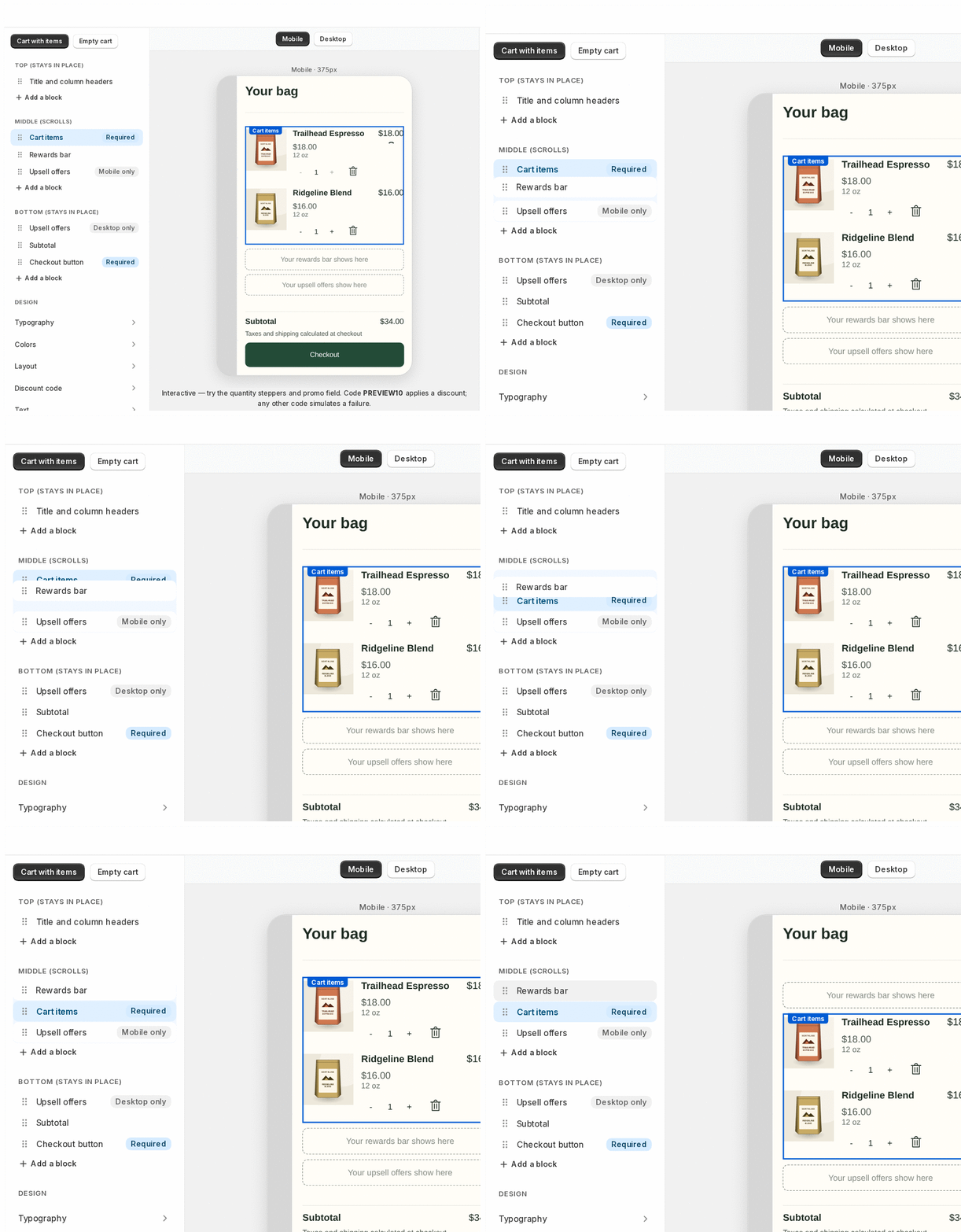
Use the built-in settings to change the colors, fonts, button shape, and text. You can also add custom CSS scoped to the drawer. The rewards and offers themselves still come from the programs you set up under Rewards and Offers; the cart editor decides where they appear.
Design for a full cart and an empty one
Use Cart with items and Empty cart to design each layout. A full cart might show a reward goal, product suggestions, a discount code field, and checkout. An empty cart might just show a short message and a link back to shopping. Switch between the mobile and desktop previews before you publish.

Try a draft before changing the storefront
Duplicate your live drawer to try a different layout. You can keep and name multiple drafts, so you can prepare a seasonal version without changing the everyday cart. Saving a draft doesn’t change what shoppers see.
When you’re ready, select Publish. Only one design is live at a time. The previous live drawer moves back into your library as a draft, so you can use it again.
Ask your AI assistant to make a first pass
An AI assistant connected through UpsellPlus MCP can read your live design and drafts and explain how the blocks work. With separate permission to make cart changes, it can create or edit a draft and give you a preview link. If you already have an assistant connected, reconnect it from AI assistants and approve the new cart permissions.
Copy my live cart, move the rewards bar above the cart items, and save it as a draft. Don’t publish it.

You don’t have to publish from chat. You can open the preview and publish in UpsellPlus. If you do ask the assistant to publish or edit the live drawer, it will ask for your go-ahead first.
Start with one change
Already using the UpsellPlus drawer? Your existing design carries over. Open Cart Drawer, duplicate it, and try moving one block in the mobile preview. New to UpsellPlus? Get UpsellPlus on the Shopify App Store or book a demo.
For ideas on what to put in the drawer, see our guide to cart drawer upsells on Shopify.


Jaap Vergote
Need help implementing this?


Related articles

Ready to make every order worth more?


