.svg)


How to create a line item script to discount a specific item
How to create a line item script to discount a specific item
Shopify Scripts are powerful! But they can be confusing. A step by step guide on how to create and launch a line item discount.
We created this guide for a Plus store selling fishing gear. They wanted to discount t-shirts by 20% when added to cart.
1/ Open the Shopify Script Creator (link)
2/ Click 'Add Campaign' and select 'Conditional Discount'. Name the campaign for internal use.

3/ Scroll down to 'Discounted item selector' and add the product ID's for the products you want to discount.

You can find your product ID by going to Shopify admin > Products > select the product you want the ID for > check the URL and copy the ID.

4/ Scroll down and select the discount you'd like to apply. Example for a 20% discount:

5/ Click 'Save'
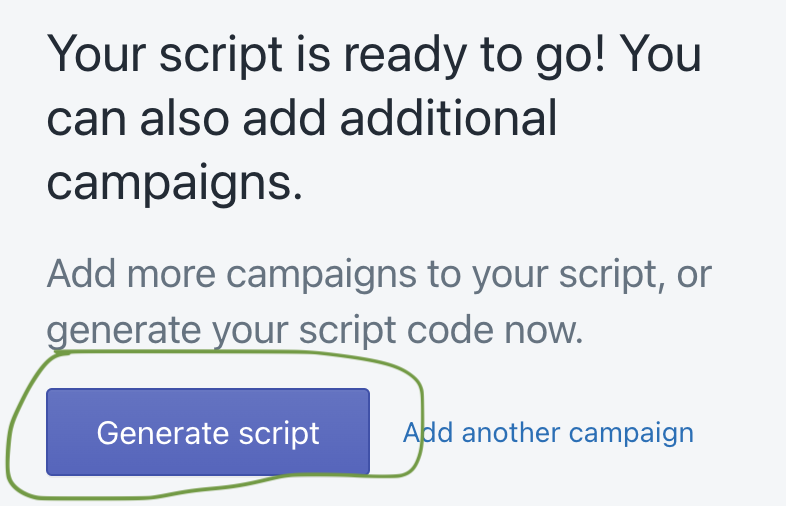
6/ Now click 'Generate Script'. Copy the code that is generated. Now we will plug that code into your store.
7/ Go to your Shopify admin. Go to apps > Click the Script Editor > Create script > Select % off a product > Create script

8/ Give the script a name. Delete whatever code is already there and paste in the code you copied in step 6.
9/ Save and publish the script
This should do it! Now you can test it by adding the product you selected to cart and checking if the discount is applied.
We also made a video walkthrough of this setup: https://watch.screencastify.com/v/Oit4G8cOkGh9ka5sqLtB
Looking for how to only apply this discount to the upsell item when it's added as an upsell? We wrote a guide for that too: https://www.upsellplus.com/blog-post/how-to-use-shopify-scripts-to-create-an-upsell-only-discount
Struggling to set this up? We specialize in creating custom scripts: ShopifyScripts.com

Jaap Vergote
Need help implementing this?

.svg)
Related Strategies

.svg)

While Supplies Last: 3 Methods to Create Urgency and Scarcity on Your Store
.png)
Ready to make every order worth more?
.svg)
.svg)
.png)


