.svg)


Product update: Smarter free gifts
Free gifts that remove themselves when shoppers stop qualifying, per-page post-purchase design with a funnel preview, and Design Mode.
TL;DR: Free gifts are now removed automatically when a shopper stops qualifying, and come back if they qualify again. Post-purchase upsell and downsell pages can each have their own design, with a preview of the whole funnel. And Design Mode gives you a full-width live preview with inline text editing.
What's new in this update
- Smarter free gifts: the gift leaves the cart when conditions stop being met.
- Post-purchase funnel design: design every page and preview the whole path.
- Design Mode: click any element to style it and double-click text to edit it.
Free gifts are removed when shoppers no longer qualify
Until now, if a shopper stopped qualifying for a free gift because the cart total dropped, a code was removed or the trigger product was taken out, only the gift's discount was removed. The item stayed in the cart at full price. Now the gift itself is removed automatically, and comes back if they qualify again. Offers re-check every condition as the checkout changes, so your promotions stay airtight without any configuration.

Post-purchase funnels: design every page, preview the whole path
Downsell and upsell pages can now have their own design and their own callout banner instead of copying the first page. Use the new Preview funnel button to click through Pay now and Decline and see exactly what shoppers see at every step. You no longer need test orders.

Design Mode with inline text editing
Open Design Mode from the Styling tab for a full-width live preview. Click any element to see only its settings, double-click any text to edit it in place, and switch layouts from a compact picker with one-click reset. Automated offers now preview your real products, so what you see is what shoppers get.
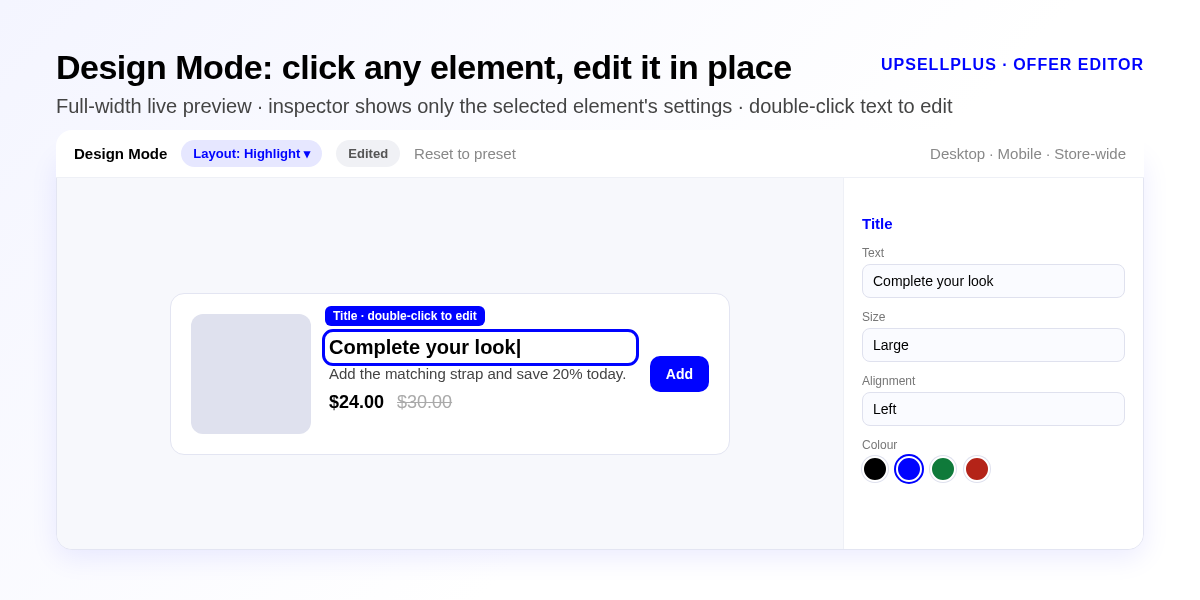
Where to find it: Styling tab → Design Mode.
Frequently asked questions
What happens to a free gift when the shopper no longer qualifies?
UpsellPlus now removes the gift from the cart automatically, and adds it back if the shopper qualifies again. Previously only the discount was removed and the item stayed at full price.
Can post-purchase upsell and downsell pages have different designs?
Yes. Each page can have its own design and callout banner, and the Preview funnel button lets you click through the whole path.
Do I need a test order to check my post-purchase funnel?
No. Use Preview funnel to click through Pay now and Decline and see every step.
Get started
All of these features are live in UpsellPlus today. Start for free with a 14-day free trial, or book a demo and we'll launch any of them with you.
Looking for more ideas? Read our posts on automatic free gifts with purchase and creating a downsell post-purchase offer.


Jaap Vergote
Need help implementing this?

.svg)
Related Strategies

.svg)


Ready to make every order worth more?
.svg)
.svg)
.png)