.svg)


Product update: Offers right under the cart line in checkout
Show a subscription upgrade, a swap or an add-on directly under the item it belongs to in checkout, with the price difference at a glance.
TL;DR: UpsellPlus checkout offers can now appear directly under a cart line, not only in a separate block. Turn a one-time purchase into a subscription with one tick, offer an upgrade that shows only the extra cost ("+$20.00"), or add a matching item with a single link. Targeting, A/B tests and analytics work as they do for every offer.
What's new in this update
- Offers under the cart line: the offer sits right below the item it's about.
- Subscribe & save in one tick: a checkbox moves that line onto a subscription plan, and unticking it undoes the change.
- Upgrades that show the difference: swap offers can show "+$20.00" instead of the full price. This works for swaps in every placement.
- Add-ons as a link: "Add a gift card · $10.00 · Add" fits on one line.
- A true-to-size preview: the editor shows the offer under a sample cart line, at checkout's real width on desktop and mobile.
Offers where the shopper is already looking
A checkout upsell block sits apart from the items in the order, so the shopper has to work out which product an offer is about. Line-item offers sit directly under the cart line they belong to. The connection is obvious, and they run alongside your existing checkout block rather than replacing it.
Subscribe & save in one tick
Getting a one-time buyer onto a subscription usually waits until after the purchase. Now a single checkbox under the product moves that line onto your subscription plan, right in checkout. Untick it and the line goes back to a one-time purchase.

Upgrades that show what they cost
A full price on an upgrade makes shoppers do the maths. Swap offers can now show the difference instead, like "+$20.00", based on the item in the cart and its quantity. Choose "Show price as: Difference" on any swap offer, in any placement.
Add-ons as a quiet link
Not every offer needs a big button. The Inline Button layout shows title, price and a link on one line, so a small add-on fits neatly under the item it goes with.
See it before it goes live
The space under a cart line is narrow. The offer editor now previews line-item offers under a sample cart line, at checkout's real width on desktop and mobile, so you can see exactly how they'll fit. Two layouts are built for this space: Inline Checkbox and Inline Button.

Where to find it: Offers → new offer → placement Checkout Line Item, then add the Line Item Offers & Actions block in the checkout editor.
FAQ
Does it replace my checkout upsell block?
No, it runs alongside it.
Can I A/B test it against my current offer?
Yes.
Does it work on mobile?
Yes.
What price does the shopper see?
The plan price for subscriptions, the extra cost for upgrades.
Get started
Line-item offers are live in UpsellPlus today. Start for free with a 14-day free trial, or book a demo and we'll set them up with you.
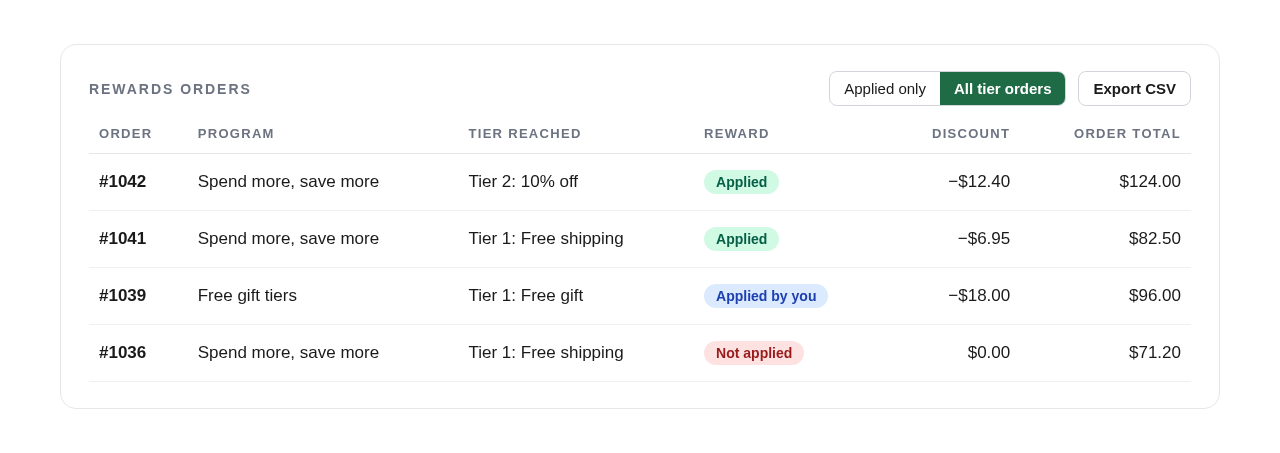
Missed our last update? Read about Rewards orders and one-click layouts.


Jaap Vergote
Need help implementing this?

.svg)
Related articles
.svg)

Ready to make every order worth more?
.svg)
.svg)
.png)