.svg)


Product update: Rewards orders and one-click layouts
See every order that reached a rewards tier and whether the reward applied, and style offers faster by starting from a recommended layout.
TL;DR: UpsellPlus Analytics now lists every order that reached a rewards tier, with the program, the tier, whether the reward applied, the discount and the order total, plus a CSV export. Styling an offer is also faster: you start by picking a layout card, and new offers begin on the layout recommended for their placement.
What's new in this update
- Rewards orders: see every order that reached a tier and whether the reward applied.
- CSV export: take your rewards orders into your own reporting.
- One-click layouts: start styling from Stacked, Duo or Showcase.
- Recommended starting layout: new offers start on the layout that fits where they appear.
- A clearer offer editor: a checkmark on each finished step and a single Continue button.
Rewards orders: see what every tier delivered
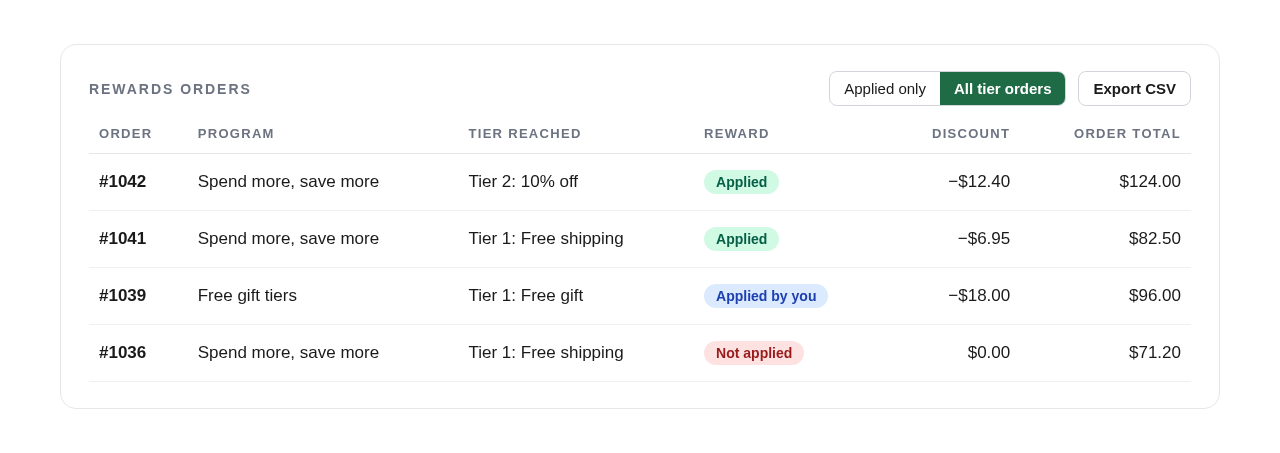
A rewards program only pays off if shoppers reach the tiers and the rewards apply as planned. Until now, checking one order meant opening it in Shopify and working it out. Analytics → Rewards now includes a Rewards orders list. For each order that reached a tier, you see the program, the tier reached, whether the reward was applied, the discount given and the order total.
The list shows applied orders by default. Switch to all tier orders to also see orders where the reward wasn't applied, then export to CSV to share with your team or match against your own reports.
Where to find it: Analytics → Rewards → Rewards orders.
Pick a layout in one click
Getting an offer to look right used to start with a long list of style settings. The Styling step now opens with layout cards: Stacked, Duo and Showcase. Pick one and the offer takes on that layout straight away. New offers start on the layout we recommend for their placement and the number of products they show, so they look right from the first save.
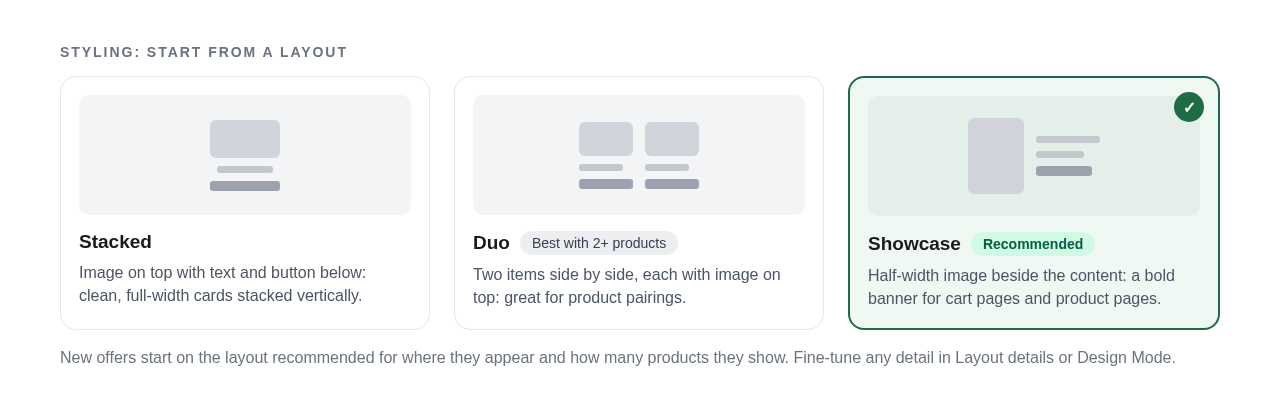
You can still change everything. Fine-tune spacing and structure under Layout details (previously called Layout Configuration), or open Design Mode to edit on a live preview.
Where to find it: Offers → any offer → Styling.
A clearer offer editor
Each step in the offer editor now shows a checkmark once it's done, so you can see at a glance what's left before you publish. There's also a single Continue button at the bottom of each step, so you always know where to click next.
Frequently asked questions
Where can I see which orders got a rewards discount?
Go to Analytics → Rewards in UpsellPlus. The Rewards orders list shows every order that reached a tier, whether the reward was applied, the discount and the order total.
Can I export rewards orders?
Yes. Use Export CSV on the Rewards orders list to download it.
Will picking a layout overwrite my existing offer styling?
Layout cards are the starting point for offers whose styling you haven't customized yet. Once you've edited the styling, the layouts collapse into a compact picker, and you can keep fine-tuning in Layout details or Design Mode.
How does UpsellPlus choose the recommended layout?
It looks at where the offer appears and how many products it shows, and starts new offers on the layout that fits best.
Get started
All of these features are live in UpsellPlus today. Start for free with a 14-day free trial, or book a demo and we'll set them up with you.
Missed our last update? Read about Complete the Set, the new offer that turns part of a gift set into the whole set.


Jaap Vergote
Need help implementing this?

.svg)
Related articles
.svg)


Ready to make every order worth more?
.svg)
.svg)
.png)